Oppo Find N6: First 20 Things To Do
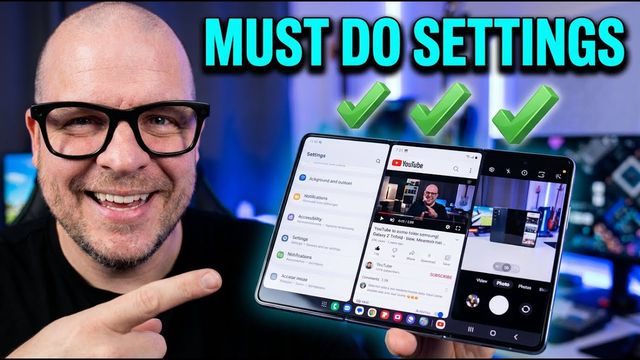
The first things I change on the Oppo Find N6 foldable: 4K60 video, home screen swipe, quick settings, taskbar, vivid display, Snap Key and more.
Quick summary: These are the first settings I change on the Oppo Find N6 foldable, in the order I do them.
Camera
- Video resolution and frame rate: in Video, set the rear cameras to 4K 60fps. The front cameras top out at 4K 30fps.
- Turn off the shutter sound in camera Settings.
- Show palm: under Gestures / Shooting methods, make sure show palm is on so you can take photos from a distance.
- Quick launch: turn it on so double pressing either volume button opens the camera when the screen is off. It doesn’t work during audio playback or from another screen.
Home screen and quick settings
- Wallpaper: press and hold a blank spot on the home screen, open Wallpapers, and pick a classic, ColorOS, album, downloaded or AI-created wallpaper. You can apply it to both displays or match them.
- Swipe down for notifications: in Home screen settings, change the swipe-down action from global search to the notification and settings shade. That one’s a must if you’re coming from Galaxy.
- App animation speed: set it to Enhanced so the phone feels faster.
- Edit tiles: swipe down, tap the three dots > Edit tiles, then drag, remove (minus) or add (plus) toggles.
- Classic quick settings: under three dots > Customize quick settings, switch from split to Classic so you swipe down twice for everything. You can change the tile shape here too.
Connections and foldable features
- Auto Wi-Fi: in Wi-Fi > three dots > More settings, turn on automatically turning Wi-Fi on near previously connected networks.
- Rename the phone: in Bluetooth, change the device name (I add my name, since my wife and I sometimes have the same phone).
- Display size per app: in Foldable features > Display size, force an app to 4:3, 16:9 or full screen on the main display.
- Dual windows: turn it on for supported apps to run one app in two windows.
- Taskbar: keep it shown in apps, choose floating or fixed, and choose whether to show recent files and suggested apps.
- Screen switching: I set closing the phone to turn the screen off, rather than continuing the app on the cover screen.
Display, sound and notifications
- Display and brightness: choose dark, light or a schedule, set Screen color mode to Vivid (adjust cool or warm), turn on video color boost and image sharpener, set auto screen off to 2 minutes, and turn on Screen attention so it stays on while you look at it. You can also restyle the Always On Display in Home screen and lock screen.
- Sounds: change your ringtone, turn off extra system sounds, and turn on Clear voice to filter background noise on calls.
- Status bar: I hide the battery icon but show the battery percentage. You can also turn on live updates for rides, deliveries and sports scores, and wake the screen when a notification arrives.
Security, Snap Key and system
- Face and fingerprint unlock: set them up in Security and privacy > Device unlock, along with a screen lock.
- Snap Key, performance and updates: set what pressing and holding the Snap Key does (I use the flashlight; you can pick do not disturb, camera, recorder, translate, screenshot and more). Turn on high performance mode in Battery if you want maximum power (balanced is the default). In Accessibility and convenience, keep the two-finger swipe for split screen and the sidebar on. Last, check System and update for updates.
Get it
It’s a really nice foldable.
Watch the full video on YouTube, and subscribe to GregglesTV for daily tech news, reviews and walkthroughs.
See today’s GregglesTV Best Tech Deals or browse all deals posts.

Comments
Comments are moderated. Hate, slurs, spam and scam posts are blocked. Don’t include personal info you wouldn’t want public. See the privacy policy.
Loading comments…