How to Play Your PS5 on Your Phone With PS Remote Play (iPhone and Android, Step by Step)
Want to play GTA VI or anything else on your PS5 from your phone or tablet? Here's how to set up PS Remote Play on iPhone and Android, pair a DualSense controller, use mobile data and wake your PS5 from rest mode.
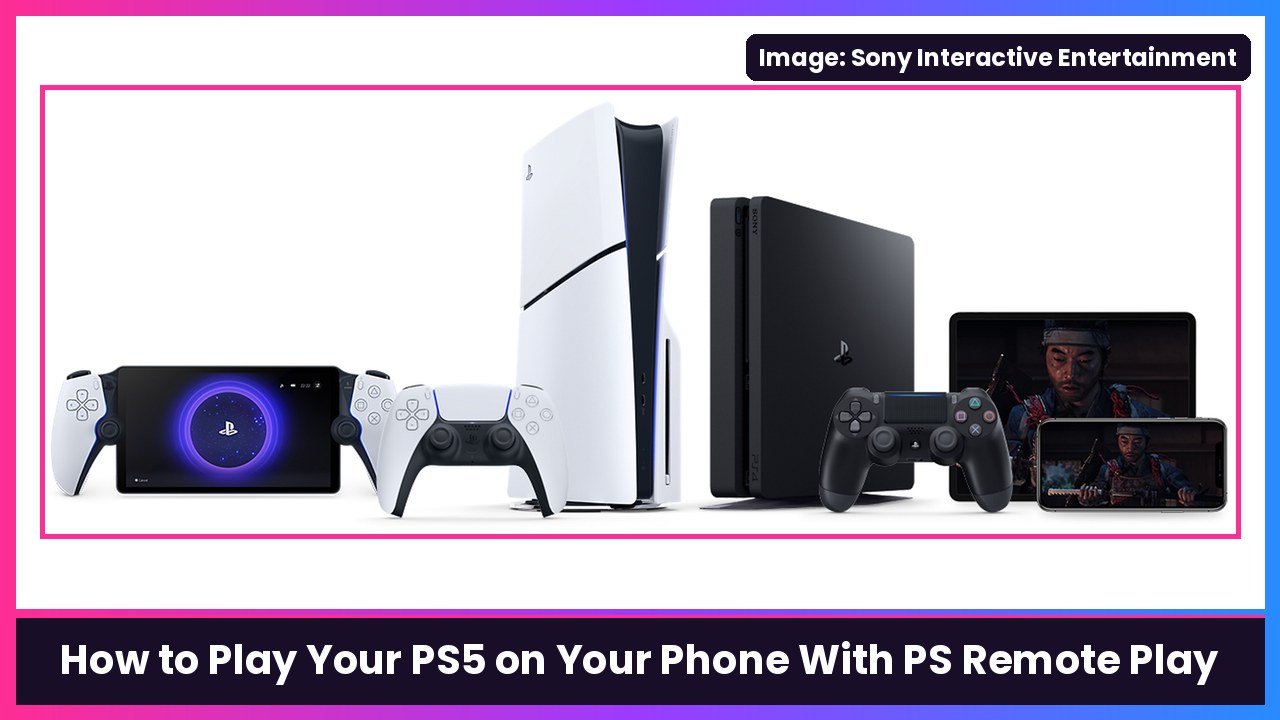
Quick summary: GTA VI launches on PS5 on November 19, and somebody in your house is going to want the TV. Good news: Sony’s free PS Remote Play app streams your PS5 to an iPhone, iPad, Android phone or Android tablet, so you can keep playing from the couch, the bedroom or even outside the house. You do a one-time setup on the PS5, install the app, sign in, and you’re in. Every step below comes straight from Sony’s official PS Remote Play guide and PlayStation Support.
Before you start: make sure your PS5 is on the latest system software. If you haven’t done that yet for GTA VI, follow my guide on how to update your PS5 for GTA VI first.
What you need
Per Sony’s requirements:
- An Android phone or tablet, iPhone, or iPad (check the system requirements on Google Play or the App Store).
- A PS5 (or PS4) on the latest system software.
- The same PlayStation account you use on your console.
- A fast connection: Sony recommends upload and download speeds of at least 5 Mbps, and at least 15 Mbps for the best performance.
- Optional but strongly recommended: a DualSense controller paired to your phone. On-screen buttons work, but a real controller is a huge upgrade.
Step 1: Turn on Remote Play on your PS5 (one time only)
- On the PS5 home screen, go to Settings > System > Remote Play.
- Turn on Enable Remote Play. Sony notes you can set this for each user on the console.
Step 2: Let your phone wake the PS5 from rest mode
This is the step people skip, and it’s why Remote Play “can’t find” their console later.
- Go to Settings > System > Power Saving > Features Available in Rest Mode.
- Turn on Stay Connected to the Internet.
- Turn on Enable Turning On PS5 from Network.
Now you can leave the PS5 in rest mode and start a session from your phone.
Step 3: Install PS Remote Play on your phone
Download PS Remote Play from Google Play on Android or the App Store on iPhone and iPad. It’s the same app for PS5 and PS4.
Step 4: Connect to your PS5
- Turn on your PS5 or put it into rest mode.
- Open PS Remote Play on your phone and select Sign In.
- Sign in with the same account you use on your PS5.
- Select PS5. The app searches for your console and connects automatically. If it finds more than one PS5, pick the one you want.
Once it connects, your PS5 screen shows up on your phone. Next time, you can just pick the console you connected to before.
Do your first connection at home. Sony says your phone won’t be able to find your PS5 if it’s been a while since you last signed in, so check that it connects properly near your console before you try it from somewhere else.
Step 5: Pair a DualSense controller to your phone
From Sony’s controller guide, with no USB cable plugged in:
- Make sure the controller’s light bar and player indicator are off. If they’re on, press and hold the PS button until they turn off.
- Press and hold the Create button, then press and hold the PS button at the same time for at least 3 seconds. The light bar flashes.
- On your phone, turn on Bluetooth and choose the option to add a new Bluetooth device.
- Select your controller from the list.
Sony lists iOS 14.5 / iPadOS 14.5 and Android 12 or later for the DualSense. A couple of honest caveats from the same page: haptic feedback isn’t supported on mobile devices, adaptive triggers aren’t supported on Android, and the controller’s mic, speaker and headset jack don’t work on phones. You still get all the buttons and sticks, which is what matters.
Step 6 (optional): Use mobile data instead of Wi-Fi
If you’re on Wi-Fi, Remote Play keeps using Wi-Fi. To allow cellular:
- In PS Remote Play, select Settings in the upper-right corner.
- Select Mobile Data > Use Mobile Data.
- Select OK.
Sony recommends turning on Notify Me When Using Mobile Data, and you can lower Video Quality for Streaming to save data. Be careful here: Sony warns that Remote Play uses a lot more data than most video streaming services, and some carriers or network conditions may not allow it at all.
Handy tips once you’re playing
- Hide the “Remote Play connected” banner: if someone else logs into the PS5 while you’re streaming, you’ll see that message. On the PS5, go to Settings > System > Remote Play and turn on Hide Remote Play Connection Status.
- Android picture-in-picture: tap the screen, select Options at the lower right, then Picture-in-Picture to keep playing in a small window.
- iPhone background streaming: in the app’s Settings, select Background Streaming > OK. Sony says it can keep running in the background for up to 5 minutes before it closes.
- Quit properly: tap the screen, select Options > Settings > Disconnect. Check Put the connected console in rest mode if you want the PS5 to go to sleep when you’re done, then select OK.
Can’t connect?
First, check whether it’s you or Sony. PlayStation Network had an outage earlier today, right before the GTA VI launch, and Android Authority reports the PlayStation status page now says all services are operational. If PSN is up and you still can’t connect, Sony’s “When Remote Play isn’t available” page says to check three things first:
- Your PS5 can reach the internet and PlayStation: on the PS5, go to Settings > Network > Connection Status, then select Internet connection or PlayStation.
- Your PS5 software is current: Settings > System > System Software > System Software Update and Settings > Update System Software.
- The PS Remote Play app is up to date: open it and follow the on-screen prompt if it asks you to update.
If it still can’t find your console, double-check that the rest mode settings from Step 2 are on and that your phone and PS5 are signed into the exact same account.
My take
Remote Play won’t replace your TV for something as gorgeous as GTA VI, but it’s perfect for grinding missions in bed or keeping a session going when the living room gets taken over. A big phone like the Galaxy S26 Ultra plus a DualSense controller works great. If you’ll do this a lot, Sony’s PlayStation Portal is built for exactly this, and I’ve got a guide on cloud streaming with the Portal too.
Sources: Sony PS Remote Play guide for mobile devices, PlayStation Support: PS Remote Play on mobile devices, Sony: When Remote Play isn’t available, Sony wireless controller guide, Android Authority on today’s PSN outage.
Subscribe to GregglesTV for daily tech news, reviews and walkthroughs.
See today’s GregglesTV Best Tech Deals or browse all deals posts.
Comments
Comments are moderated. Hate, slurs, spam and scam posts are blocked. Don’t include personal info you wouldn’t want public. See the privacy policy.
Loading comments…