How to Use Audio Sharing on Your Pixel: Two Pairs of Earbuds, One Phone
Step-by-step: share what's playing on your Pixel with a second pair of LE Audio earbuds, set each person's volume, join nearby Auracast streams, and try the new Voice broadcast tile from the November update.
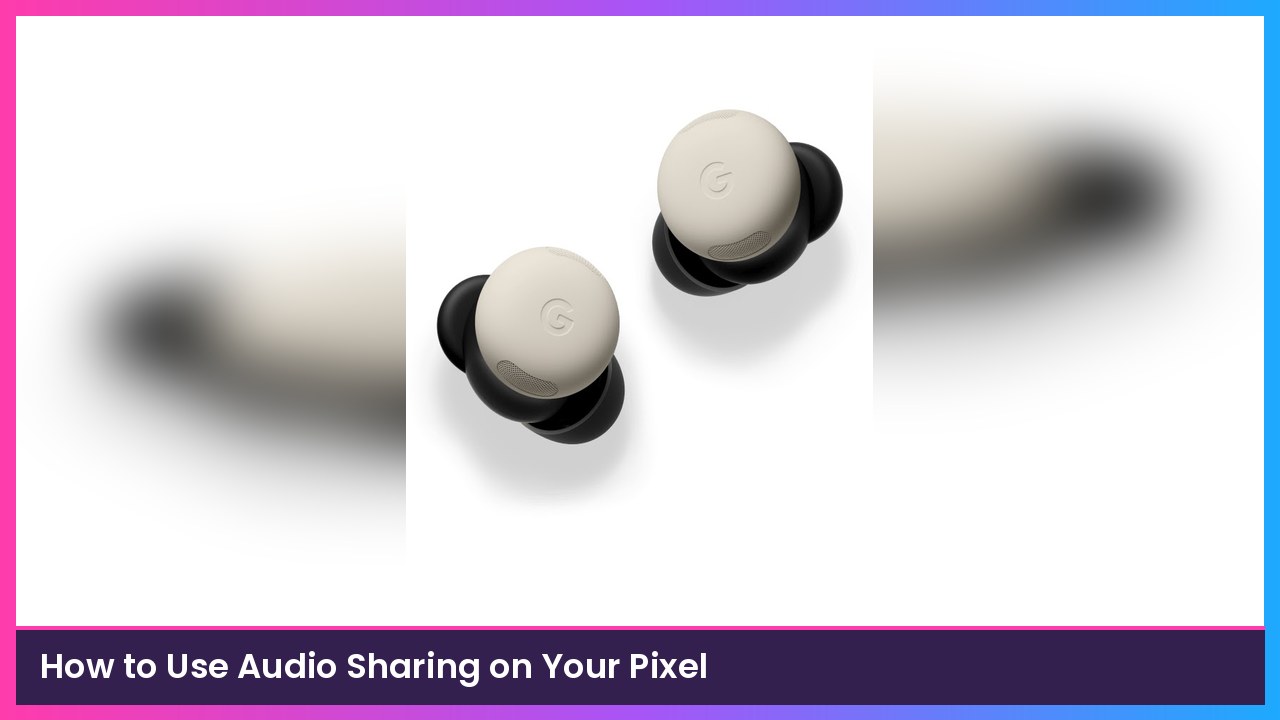
Quick summary: Your Pixel can play the same audio to two pairs of earbuds at once, so you and a friend can watch the same video on a flight without splitting one set of buds. Google calls it Audio sharing, and it runs on Bluetooth LE Audio (Auracast). The November update (Android 17 QPR2) also added an Audio streams tile and a Voice broadcast tile to Quick Settings, per Auracast News. Here’s how to set it all up.
Key takeaways
- The Share audio button is in the Bluetooth panel of Quick Settings, at the bottom left. It only appears when LE Audio earbuds are connected.
- Google lists the Pixel 8, Pixel 8 Pro, Pixel 8a, Pixel 9, Pixel 10 and Pixel 11 as supported phones on its Pixel Buds help page.
- Both sets of earbuds need LE Audio. Google names Pixel Buds Pro 2 and Pixel Buds 2a, plus specific models from Jabra, Samsung, Sony and Xiaomi.
- All the controls live in Settings > Connected devices > Connection preferences > Audio sharing.
Before you start
- Update your Pixel: Settings > System > Software updates.
- Have two pairs of LE Audio earbuds. If you’re using Pixel Buds, Google says LE Audio has to be enabled on both pairs.
- Pair both pairs first. Google’s troubleshooting tip: a second pair may fail to pair if a broadcast is already running.
Step 1: Connect your own earbuds
- Connect your LE Audio earbuds to your Pixel as usual, like a pair of Pixel Buds Pro 2.
Heads up: Google says Pixel Buds Pro 2, Pixel Buds 2a and third-party earbuds don’t support turning on Audio sharing through Fast Pair, so you’ll do it from Quick Settings or Settings.
Step 2: Pair the second pair of earbuds
For a second pair of Pixel Buds, Google’s steps are:
- Make sure Bluetooth is on.
- Open your friend’s Pixel Buds charging case with both buds inside.
- Press and hold the button on the back of the case until the LED on the front blinks.
- Select the buds from your phone’s Bluetooth settings to pair them.
For Jabra, Samsung, Sony or Xiaomi earbuds, follow that brand’s pairing steps. Google says some of those models must be connected through Quick Settings.
Step 3: Turn on Share audio
- Swipe down from the top of your home screen to open Quick Settings.
- Tap Bluetooth.
- At the bottom left, tap Share audio.
- Share to the second pair you paired. If you haven’t paired one yet, tap Pair new device here.
What you should see: Both pairs of earbuds play the same audio. In Quick Settings, the button now reads Sharing audio.
Step 4: Set each person’s volume
- Open Settings > Connected devices > Connection preferences > Audio sharing (or tap Sharing audio in the Bluetooth panel).
- Adjust the volume for each pair separately.
- Tap Call audio to choose which earbuds take phone calls.
- Tap Play a test sound to make sure everyone can hear. Everyone connected hears it.
Step 5: Join a nearby audio stream
Auracast also lets you tune in to public broadcasts, like a TV at a gym or a venue’s audio.
- Go to Settings > Connected devices > Connection preferences > Audio sharing or Nearby audio streams.
- Tap Find an audio stream.
- Tap the stream name. If it’s password protected, enter the password from the host.
Shortcut: You can also open the Camera app and scan the host’s QR code, then tap Listen. After the November update, there’s an Audio streams tile you can add to Quick Settings to jump straight to the list.
Bonus: Voice broadcast (new in the November update)
Android 17 QPR2 adds a Voice broadcast tile (still labeled a preview) that sends what your Pixel’s microphone hears to nearby Auracast earbuds or hearing aids. Think tour guide, or a hearing aid wearer handing their phone to someone across a noisy table. Based on Google’s feature list as reported by Auracast News:
- Edit Quick Settings and add the Voice broadcast tile, then tap it.
- Change the broadcast name if you want.
- Turn on Private channel to add a password.
- Tap Start broadcast.
Google hasn’t said exactly which Pixels get Voice broadcast. If you can’t find the tile when editing Quick Settings, your phone may not support it yet.
How to stop sharing
- To stop sharing your audio, go back to Audio sharing settings and turn off Share audio.
- If you’re listening to someone else’s stream, leave it from the broadcast screen or your Bluetooth Quick Settings.
Tips
- Gemini still works. Google says you don’t need to stop sharing to use Gemini.
- Brief dropouts are normal. Google says one earbud may lose audio for a second or two and recover automatically. If it keeps happening, restart the broadcast or reconnect the buds.
- Pairing fails? Stop the broadcast, pair both sets, then start it again.
- Earbud controls still work. On Pixel Buds, tap to play/pause, double tap to skip, and touch and hold to switch noise control modes.
Recap checklist
- Supported Pixel, updated
- Two pairs of LE Audio earbuds, both paired before you start
- Quick Settings > Bluetooth > Share audio
- Set volume and Call audio in Settings > Connected devices > Connection preferences > Audio sharing
- Played a test sound
- Optional: added the Audio streams and Voice broadcast tiles
My take
This is a sleeper feature for travel. Two people, one phone, one movie, no splitter. If you’re going to use it, a pair of Pixel Buds Pro 2 is the easy pick since Google lists them by name. And if you’re upgrading your phone, the Pixel 10 Pro and Pixel 11 Pro Fold are both on Google’s supported list.
Sources
- Google Pixel Buds Help: Use Audio Sharing on Google Pixel Buds
- Android Help: Use multiple Bluetooth audio accessories at once on an Android device
- Auracast News: Pixel phones can now broadcast your voice over Auracast (Nov 12, 2026)
- Mint: Google rolls out Android 17 QPR2 for Pixel phones (Nov 12, 2026)
Subscribe to GregglesTV for daily tech news, reviews and walkthroughs.
See today’s GregglesTV Best Tech Deals or browse all deals posts.
Comments
Comments are moderated. Hate, slurs, spam and scam posts are blocked. Don’t include personal info you wouldn’t want public. See the privacy policy.
Loading comments…