How to Turn Off Generative AI in Canva (and See Less AI Content), Step by Step
Canva now has a single switch that hides Magic Write, Magic Media, Dream Lab, Canva AI and other generative features, plus a second toggle to see fewer AI-made templates. Here's exactly where both live on desktop and mobile.
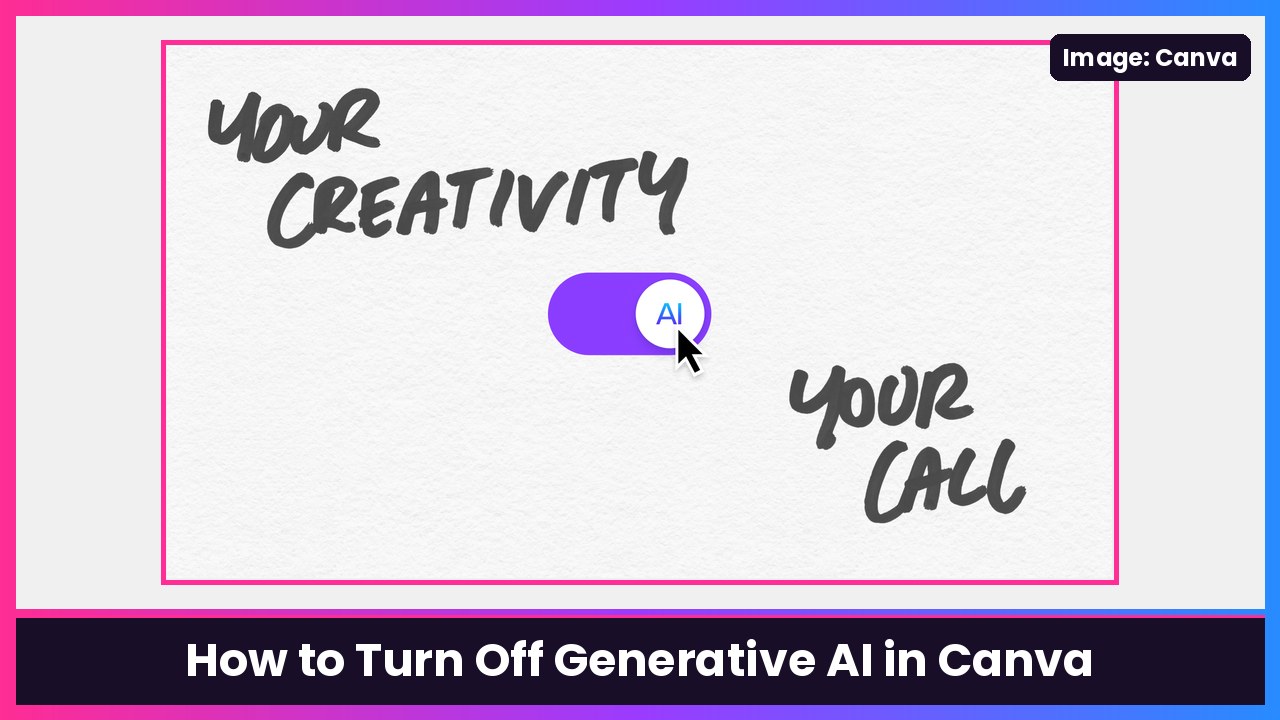
Quick summary: Canva just added an AI off switch. On Canva Free and Canva Pro, one toggle called Enable generative AI features hides Canva’s generative tools across the app, and a second toggle lets you see fewer AI-generated templates and elements when you search. Canva announced the controls today, and the steps below come straight from Canva’s Help Center page, Turn generative AI features off and see less AI-generated content. Heads up: Canva says it’s rolling these toggles out gradually, so you might not see them yet.
What the switch turns off (and what it doesn’t)
Generative AI is on by default, so nothing changes unless you flip it. When you turn it off, Canva lists these among the features you won’t be able to use:
- Canva AI, Magic Write, Magic Design, Magic Edit, Magic Media, Magic Layers, Magic Insights and Magic Activities
- Dream Lab, Canva Code, AI Shapes, AI Charts, Image to Video and Canva AI Music and Sound Effects
- Translate designs, Transform into Doc, Decorate, Auto-match in Bulk Create, Create ads in Grow and the Help Assistant’s AI-generated design advice
What stays on: non-generative tools like Background Remover and Magic Grab. Canva told 9to5Mac they “work only with what’s already in a design,” and they don’t add an AI label to your design’s metadata. Canva also says new generative features will follow whatever you pick here.
How to turn off generative AI in Canva on desktop
- Click your profile icon.
- Select Settings.
- Under “Controls and permissions,” select Permissions.
- Turn Enable generative AI features off. (Turn it back on any time.)
How to turn off generative AI in the Canva mobile app
- Tap More.
- Tap Settings.
- Under “Controls and permissions,” select Permissions.
- Turn Enable generative AI features off.
How to see fewer AI-generated templates and elements
This one is separate from the switch above. It changes what shows up when you search Canva’s library.
On desktop:
- Go to your profile icon.
- Select Your account.
- Select AI personalization.
- Turn off AI-generated content.
On mobile:
- Tap More.
- Tap Your account.
- Tap AI personalization.
- Turn off AI-generated content.
Things to know before you flip it
From Canva’s Help Center:
- Both toggles are for Canva Free and Canva Pro accounts. On Teams, Business, Enterprise and Education, owners and admins control AI features, and Canva says your setting won’t carry over if your account moves between those plans.
- The AI-content toggle reduces AI templates and elements in Search and recommendations on the Homepage and in the Editor. Some may still appear.
- It doesn’t change designs you’ve already made, doesn’t affect Brand Templates or searches of your own uploads, and doesn’t apply inside Canva AI, third-party apps, or the API or an MCP server.
- Non-generative tools can still use your plan’s AI allowance if Canva classes them as Standard, Premium or Ultra AI tools.
My take
Canva is where a ton of creators make thumbnails and channel graphics, so I’m glad this is finally a choice instead of a fight. If you like the AI tools, leave it on. If you just want a clean editor without “Magic” buttons everywhere, it’s four taps. And keeping Background Remover around is the right call, since that’s the AI-ish tool most creators actually use daily.
For Canva at a desk, the MacBook Air M5 is an easy pick, and the Canva app works great for quick edits on a big phone like the Galaxy S26 Ultra. If you’re on iPad, the Apple Pencil (USB-C) is the budget pick for drawing and precise selections.
Sources: Canva Help Center: Turn generative AI features off and see less AI-generated content, Canva Newsroom: AI controls, 9to5Mac, The Verge, Engadget.
Subscribe to GregglesTV for daily tech news, reviews and walkthroughs.
See today’s GregglesTV Best Tech Deals or browse all deals posts.

Comments
Comments are moderated. Hate, slurs, spam and scam posts are blocked. Don’t include personal info you wouldn’t want public. See the privacy policy.
Loading comments…