How to Turn Off iOS 27's Automatic Subtitles on iPhone (Muted, Skip Back and Language Triggers), Step by Step
iOS 27 can pop subtitles onto videos on its own when your iPhone is muted, when you skip back or when the language doesn't match. Here's how to turn them off for one video or for good, using Apple's own menus.
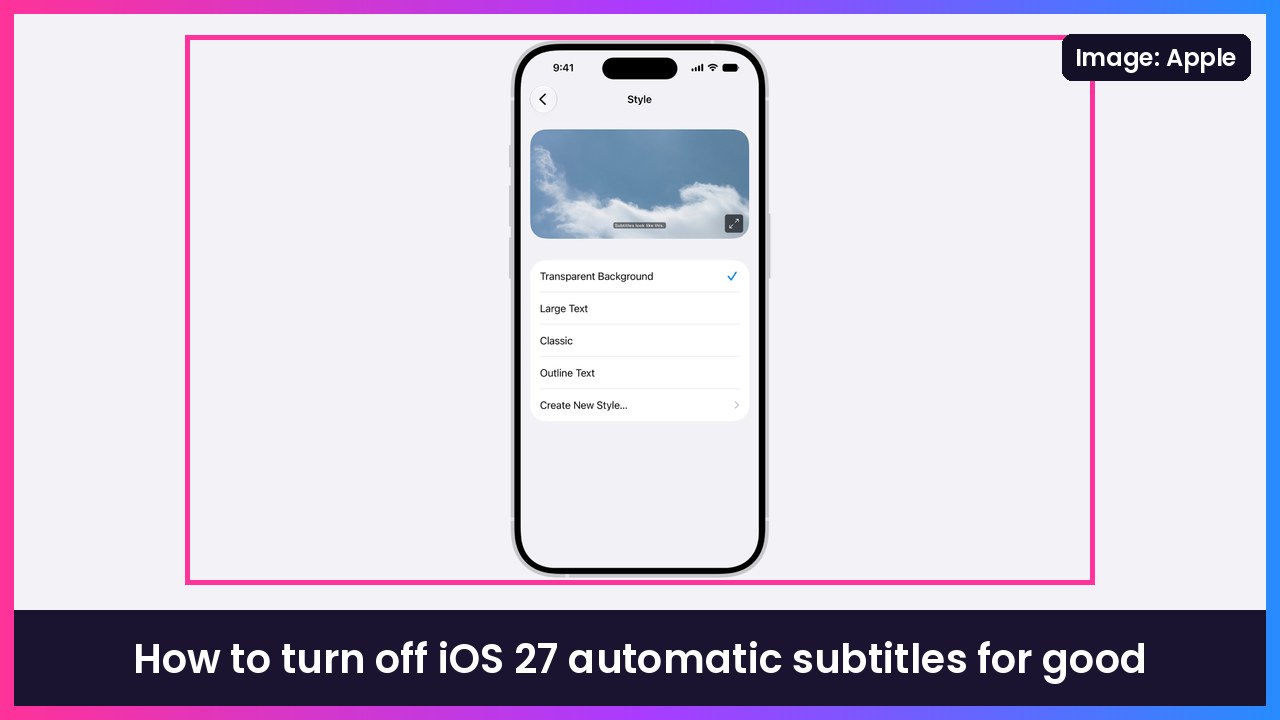
Quick summary: All right, guys, if subtitles have suddenly started showing up on random videos on your iPhone, you’re not crazy. iOS 27 adds Automatic Subtitles, and they can kick in when your phone is muted, when you skip back in a video, or when the video’s language doesn’t match your iPhone’s. Engadget and Tom’s Guide have both called it out (Engadget just today, Tom’s Guide back in August). The good news? It’s three toggles in Settings. Here’s exactly where they are, straight from Apple’s iPhone User Guide.
Links on this page are affiliate links. If you buy through them, I may earn a commission that helps the channel and the site grow.
Key takeaways
- Three triggers: Apple says subtitles may appear automatically “if your iPhone is muted, if you skip back a few seconds, or if the video is in another language.”
- Three toggles: When Languages Don’t Match, Show When Muted and Show on Skip Back, under Settings > Accessibility > Subtitles & Captioning > Automatic Subtitles.
- It’s not just streaming apps. Apple says this includes generated subtitles for videos in Photos and Messages, so yes, the clips your family texts you.
- Which iPhones: Apple says generated subtitles need iOS 27 and an iPhone 15 Pro, iPhone 15 Pro Max, or iPhone 16 model or later, and they’re in English (U.S. and Canada) when the video doesn’t already have subtitles.
Before you start
- Update iOS: Go to Settings > General > Software Update. These settings are in iOS 27.
- Know what this doesn’t touch: Regular closed captions that come with a video were always optional and work the same as before. Per Engadget, text that’s burned into a video won’t be affected, and apps with their own caption buttons (lots of streaming apps) can still show their own captions.
Step 1: Turn off subtitles on the video you’re watching right now
Quick fix for one video:
- While the video is playing, tap the screen to show the playback controls.
- Tap the More Controls button, then tap Subtitles.
- Pick Off from the list.
What you should see: The subtitles disappear. Heads up though: Engadget notes they can come right back on the next video, so do Step 2 if you want them gone for good.
Tip: In that same subtitles list, Apple says subtitles made from spoken audio are labeled “Transcribed” and translated ones are labeled “Translated.” That’s how you know iOS generated them, not the video.
Step 2: Open the Automatic Subtitles settings
- Open the Settings app.
- Tap Accessibility.
- Tap Subtitles & Captioning.
- Tap Automatic Subtitles.
What you should see: Three switches: When Languages Don’t Match, Show When Muted and Show on Skip Back.
Can’t find the row? HowToSimply says on their iPhone 17e, the three switches were right on the Subtitles & Captioning page under an Automatic Subtitles heading instead of behind a separate row. Either way, same three switches.
Step 3: Turn off the triggers you don’t want
Turn off whichever ones bug you:
- Show When Muted: Turn this off if you always keep your phone muted and don’t want captions every time. Honestly, this is the big one for most people.
- Show on Skip Back: Turn this off to stop subtitles from popping up when you rewind a few seconds. (HowToSimply says it shows them for up to 30 seconds after you skip back.)
- When Languages Don’t Match: Turn this off if you don’t want iOS showing subtitles in your preferred language whenever it thinks a video is in a different language.
What you should see: Each switch turns gray. Turn off all three and iOS stops adding subtitles on its own in supported apps.
Step 4: (Optional) Keep the one you actually like
You don’t have to go all or nothing. These toggles are separate, so if you watch a lot of videos in places where you can’t have sound up, just leave Show When Muted on and turn the other two off. Per Engadget, that one alone won’t trigger captions when your volume is up.
Step 5: (Optional) Make subtitles look better instead
If you’d rather keep them but they’re hard to read:
- Go to Settings > Accessibility > Subtitles & Captioning.
- Tap Style.
- Pick a style like Large Text, Classic or Outline Text, or tap Create New Style to choose the font, size, color, background and more.
If you prefer captions for the deaf and hard of hearing when they’re available, Apple says to turn on Closed Captions + SDH on that same page.
Still seeing subtitles?
- Check the app itself. Streaming apps and websites often generate their own captions with their own CC or subtitles button. Turn it off there.
- Close and reopen the app so the new setting takes effect.
- Check again after updates. Engadget suggests running back through these toggles after an iOS update.
Tips
- Watching on AirPods? If you’re using subtitles because you can’t have sound blasting, a pair of AirPods Pro 3 is the real fix. Then you can turn Show When Muted off and actually hear the video.
- Big screen phones: On the iPhone Duo inner display or an iPhone 18 Pro Max, the Large Text style is really, really easy to read.
- Translation trick: Apple says if a video has English subtitles and you’ve added more than one preferred language, you can tap the Captions button, then Languages, to view subtitles translated on-device.
Recap checklist
- One video: tap screen > More Controls > Subtitles > Off
- For good: Settings > Accessibility > Subtitles & Captioning > Automatic Subtitles
- Turn off Show When Muted
- Turn off Show on Skip Back
- Turn off When Languages Don’t Match
- Still showing? Check the app’s own CC button
- Re-check after the next iOS update
My take
I’ll be honest with you, automatic subtitles are actually a great accessibility feature, and generated subtitles on videos that don’t have any is literally kind of awesome. But turning them on by default for everybody, every time your phone is muted? That’s a lot. The nice part is Apple split it into three switches, so you can keep the one you like and ditch the rest. Love it.
More iOS 27 how-tos: set a separate alarm volume on iPhone and check and turn off microphone access.
Sources: Apple iPhone User Guide: Display subtitles and captions on iPhone (menus, toggles, supported models, Style, Closed Captions + SDH, translation), Engadget: iOS 27 has automatic subtitles, but you can simply turn them off (Thomas Godwin, Nov 28), Tom’s Guide: How to disable iOS 27’s auto-subtitles for good (Kaycee Hill, Aug 5), HowToSimply: Turn on subtitles and captions on an iPhone (iOS 27). Image: Apple (iPhone User Guide subtitle style screenshot).
Subscribe to GregglesTV for daily tech news, reviews and walkthroughs.
See today’s GregglesTV Best Tech Deals or browse all deals posts.

Comments
Comments are moderated. Hate, slurs, spam and scam posts are blocked. Don’t include personal info you wouldn’t want public. See the privacy policy.
Loading comments…