How to Transfer Your Nintendo Switch Data to a Switch 2
Getting a Switch 2 this Black Friday? Here's exactly how to move your games, saves, users and screenshots from your old Switch with Nintendo's System Transfer, plus what doesn't come over and the mistake that can wipe your old console.
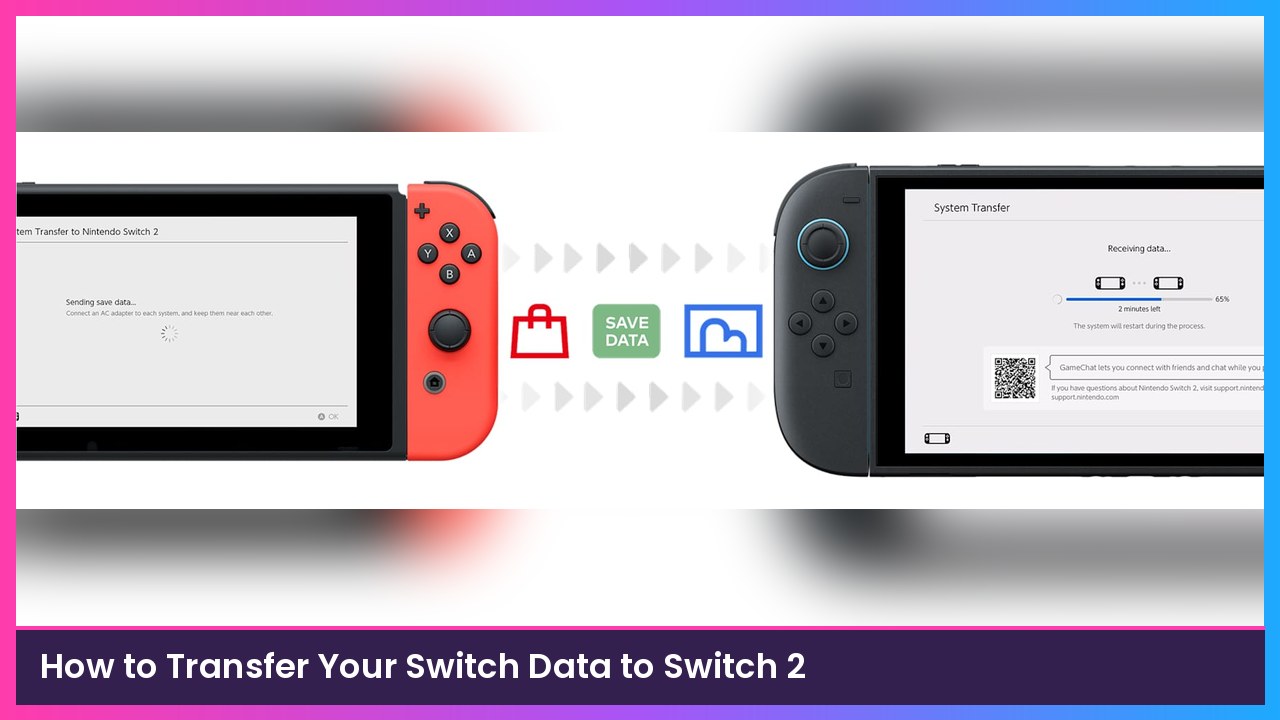
Quick summary: With the Switch 2 Mario Kart World bundle dropping to $499.99 on November 22, a lot of you are about to upgrade from an original Switch. The good news: Nintendo’s System Transfer moves your users, digital games, save data, screenshots and more to the new console. The catch: you can only do it during the Switch 2’s first-time setup, and it deletes data from your old Switch. Here’s how to do it right, straight from Nintendo’s support guide.
Key takeaways
- System Transfer only works during the Switch 2’s initial setup. If you already finished setup, you’d have to reset the Switch 2 to do it.
- There are two ways: local (both consoles side by side, recommended) or server (upload now, download later, for trade-ins).
- On the old Switch, it’s Settings > System > System Transfer to Nintendo Switch 2.
- Both consoles need internet and the latest system update.
- Save data gets deleted from your old Switch in some cases. Read the save data section before you start.
What transfers (and what doesn’t)
Per Nintendo, a System Transfer brings over:
- Digital games (they redownload after setup; you can turn that off)
- All users, their settings, linked Nintendo Accounts, friends and play activity
- Save data
- Screenshots and videos in system memory
- Registered network devices, Parental Controls and Mii data
- Your HOME Menu icon order, virtual game card status and Pass-Enabled console status
It does not bring over Bluetooth audio devices, custom controller button mappings, or time, time zone, region and language. You’ll set those up again.
Before you start
- Plug both consoles in and keep them near each other.
- Update your old Switch: Settings > System > System Update.
- Connect it to the internet: Settings > Internet > Internet Settings.
- Move screenshots to system memory if you can. Nintendo recommends moving as much data as possible to system storage first. Switch 2 can’t use regular microSD cards for storage. It needs a microSD Express card, like this SanDisk 256GB microSD Express card. If you can’t move everything, the Switch 2 may ask you to insert your old card temporarily to copy screenshots and videos.
- Tell everyone who shares the console. Every user on the old Switch is included.
How save data is handled (read this!)
Using the local method:
- Save data for users linked to a Nintendo Account, in games that support Save Data Cloud Backup, stays on the old Switch and is copied to the Switch 2.
- Save data for users not linked to a Nintendo Account, and for games that don’t support Save Data Cloud Backup, is deleted from the old Switch after it moves.
Using the server method, the old Switch is completely wiped (initialized to factory settings) after the upload.
If you want to keep certain saves on the old Switch too, Nintendo suggests transferring save data for individual users instead of doing a full System Transfer.
Method 1: Local transfer (both consoles in hand)
On the new Switch 2
- Power it on and go through setup until you reach the System Transfer screen. Connect to the internet and install the system update when it asks.
- Select Start System Transfer.
- If you have a microSD Express card, insert it using the on-screen guide. Otherwise, select Skip.
- Select Sign In to a Nintendo Account and use the same Nintendo Account that’s linked to the user on your old Switch.
- Select Next.
- Make sure both consoles are nearby, then select Done.
On the old Switch
- Select Settings from the HOME Menu.
- Select System.
- Select System Transfer to Nintendo Switch 2.
- Select Next.
- Select Done when the Switch 2 is nearby and ready.
- Choose whether to redownload software and transfer screenshots and videos, then select Next.
- Wait for the consoles to connect.
Back on the Switch 2
- Once they connect, select Start Download.
What you should see: The Switch 2 shows a Receiving data progress bar, restarts, then finishes the transfer. Select OK on the old Switch when it’s done sending, then finish setting up the Switch 2.
Method 2: Server transfer (trading in your old Switch)
Use this only if you won’t have the old Switch when your Switch 2 arrives. Your old console gets wiped.
- On the old Switch: Settings > System > System Transfer to Nintendo Switch 2 > Next.
- Select I Don’t Have the Other System Yet (it may say “I don’t have a Nintendo Switch 2 yet”).
- Read the explanation and write down the Download Deadline. Nintendo keeps your data on its server for up to 1 year.
- Select Next. You may need to enter a verification code.
- Choose whether to redownload software and transfer screenshots and videos.
- Select Upload Data, then OK when the upload finishes.
- Review the info, select OK, then Start Initialization. This wipes the old Switch.
- Later, during your Switch 2’s first setup, choose Start System Transfer and sign in with the same Nintendo Account to download everything.
Tip: You can check a pending server transfer on the Nintendo Account website under Game Systems > System Transfers.
If you already set up your Switch 2
Nintendo says a System Transfer can only happen during initial setup. Your options are to initialize the Switch 2 and run setup again, or skip the System Transfer and move save data on its own (Nintendo Switch Online members can also download their Save Data Cloud Backups).
Recap checklist
- Both consoles plugged in, updated and online
- Moved screenshots to system memory where possible
- Everyone who shares the console knows it’s happening
- Understood which saves get deleted from the old Switch
- Started the transfer during Switch 2 setup with the same Nintendo Account
- Old Switch: Settings > System > System Transfer to Nintendo Switch 2
- Re-paired Bluetooth headphones and redid button mappings on Switch 2
My take
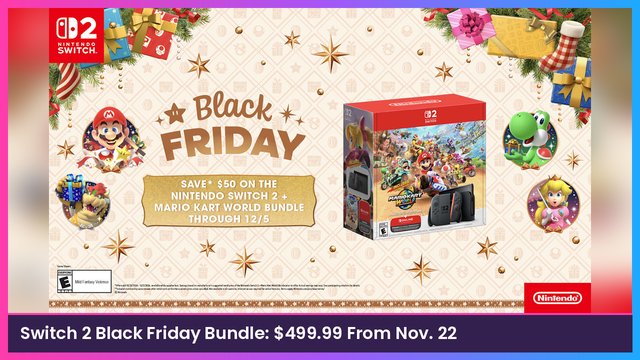
Do the local transfer if you possibly can. It’s the safest way to go, and it means you’re not betting on a server deadline. If you’re still deciding where to buy the bundle, it’s at Amazon, Best Buy and Walmart. Nintendo says the $499.99 price starts November 22.
Sources
Subscribe to GregglesTV for daily tech news, reviews and walkthroughs.
See today’s GregglesTV Best Tech Deals or browse all deals posts.

Comments
Comments are moderated. Hate, slurs, spam and scam posts are blocked. Don’t include personal info you wouldn’t want public. See the privacy policy.
Loading comments…