How to Switch Your Nest Speaker or Display From Google Assistant to Gemini for Home, Step by Step
Google Assistant leaves Nest speakers and displays on August 2, 2027, but you can switch to Gemini for Home right now. Here's how to check if your device is compatible, upgrade in the Google Home app, confirm it worked and pick a new voice.
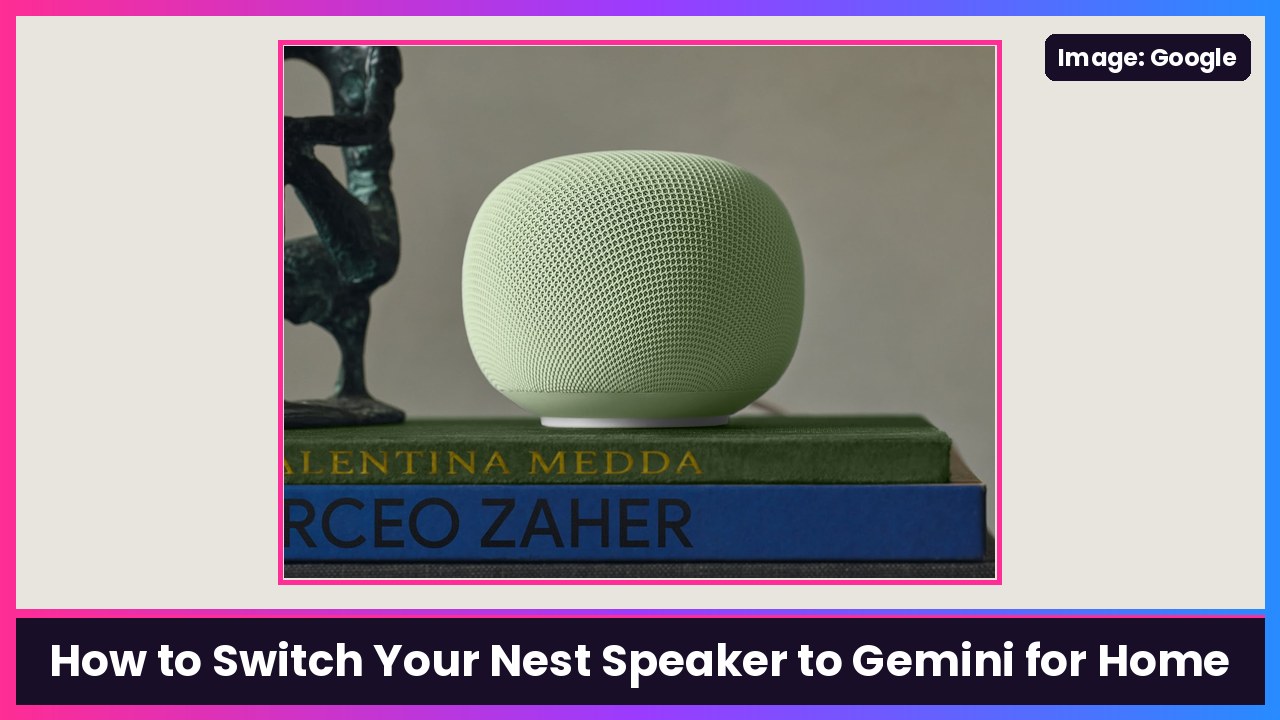
Quick summary: Google just announced that Gemini for Home replaces Google Assistant on smart speakers and displays on August 2, 2027 (here’s everything that’s changing). You don’t have to wait. If you’re in a supported country, you can switch your whole home today from the Google Home app: tap your profile picture, then Home settings, then Get started on the “Set up Gemini for Home” banner. Here’s the full walkthrough, based on Google’s own help page.
Before you start: read this
- It’s for your whole home. Once you switch, Gemini for Home is immediately on for everyone in your home, on every compatible speaker and display, plus any you add later.
- There’s no going back. Google says once you switch your home to Gemini for Home, it can’t switch back to Google Assistant.
- The basics are free. Smart home control, music and media, alarms and timers, calendars, notes, lists, reminders and general questions don’t need a subscription. Gemini Live and camera history search need Google Home Premium.
- Personal accounts only. Google says Workspace (work or school) accounts aren’t supported.
Step 1: Check that your speaker or display is compatible
Google says the full Gemini for Home experience works on:
- Google Home Speaker (2026)
- Google Nest Hub (2nd gen) and Nest Hub (1st gen)
- Google Nest Hub Max
- Google Nest Audio
- Google Nest Mini (2nd gen)
- Google Home Mini (1st gen)
The original Google Home, Google Home Max, Nest Wifi points and third-party speakers get most features, but not Gemini Live.
Step 2: Update everything
Google lists these minimum versions:
- Google Home app: version 4.1 or higher. Update it from the App Store or Google Play.
- Speakers: Cast firmware 3.76 or higher.
- Displays: Fuchsia firmware 28 or higher.
- On Android: Google says to update Speech Recognition and Synthesis before you begin.
Step 3: Switch to Gemini for Home in the Google Home app
If you got a notification that says “Introducing Gemini for Home,” just tap it, tap Get started and follow the prompts. If you dismissed it:
- Open the Google Home app.
- At the top right, tap your profile picture or initial.
- Tap Home settings.
- Look for the banner that says “Set up Gemini for Home for more natural conversations.”
- Tap Get started and follow the prompts. You’ll see what Gemini can do, confirm the upgrade and acknowledge the disclosures.
- During setup, choose your voice and your response filtering option.
On a computer? 9to5Google reports you can also start the upgrade at home.google.com/gemini.
No banner? Google says the banner only shows up once Gemini for Home is available for your home. It’s in early access in the U.S., Canada, the U.K., Australia and a bunch of other countries, with more (including India, Brazil and South Korea) listed as coming in December.
Step 4: Confirm it worked
Google gives two easy checks:
- Say “Hey Google, who are you?” Gemini for Home should tell you it’s a language model.
- Or open Google Home > profile picture > Home settings and see whether it says “Google Assistant” or “Gemini for Home voice assistant.” Tap Voice selection too: Google says voices named after colors (like “Red”) mean you’re still on Google Assistant, and voices named after plants (like “Pothos”) mean you’re on Gemini for Home.
Step 5: Pick a voice and turn on Continued Conversation
Change the voice for every speaker and display in your home:
- Open Google Home and tap your profile picture.
- Tap Home settings > Gemini for Home voice assistant > Voice selection.
Turn on Continued Conversation so you can ask follow-ups without saying “Hey Google” every time:
- Open Google Home and tap your profile picture.
- Tap Home settings > Gemini for Home voice assistant > Continued Conversation.
- Turn on Continued Conversation.
Things to try first
Google suggests talking to it like a person. Say “Hey Google,” then try:
- “What can I cook with just bread, tomatoes, and cheese?”
- “Set a 20-minute timer called Rice and a 25-minute timer called Chicken.”
- “What are the 3 best songs by [artist]?” and then “Hey Google, play the first one.”
- With Google Home Premium: “Hey Google, let’s chat” to start Gemini Live.
Bonus: get your Nest devices out of the Nest app too
The Nest app shuts down on January 25, 2027. Nest thermostats, Nest Protects and Nest x Yale Locks move to the Google Home app as soon as you sign in with a Google Account, and older Nest cameras can be transferred from their settings. Google’s steps are on its Transfer Nest devices to Google Home page. Download any saved clips from home.nest.com first, because Google says custom clips won’t transfer.
My take
I’d switch now instead of getting forced over in August. Asking for things in normal sentences, plus follow-ups, is a much better experience than memorizing commands. Just know it’s a one-way door for the whole house, so give your family a heads up. If your speaker is on Google’s “most features” list instead of the full one, the Nest Hub (2nd gen) is an easy upgrade that gets the full experience, and Gemini can control smart gear like the 4th gen Nest Learning Thermostat. On your phone, the Pixel 10 Pro has Gemini built right in.
More Gemini how-tos: change Gemini’s voice and see and edit what Gemini remembers.
Sources: Google Home Help: Learn about Gemini for Home voice assistant, Google Home Help: Get started with Gemini for Home features, Google Home Help: Transfer Nest devices to Google Home, 9to5Google (Nov 20), The Verge (Nov 20).
Subscribe to GregglesTV for daily tech news, reviews and walkthroughs.
See today’s GregglesTV Best Tech Deals or browse all deals posts.
Comments
Comments are moderated. Hate, slurs, spam and scam posts are blocked. Don’t include personal info you wouldn’t want public. See the privacy policy.
Loading comments…