How to Set Up HomePod Surround Sound With the New Apple TV 4K (or a Simple Stereo Pair), Step by Step
The 4th-gen Apple TV 4K can turn four HomePods into a surround sound system. Here's what you need, how to create the home theater group, tune it to your room, and what to do if the setup screen never shows up.
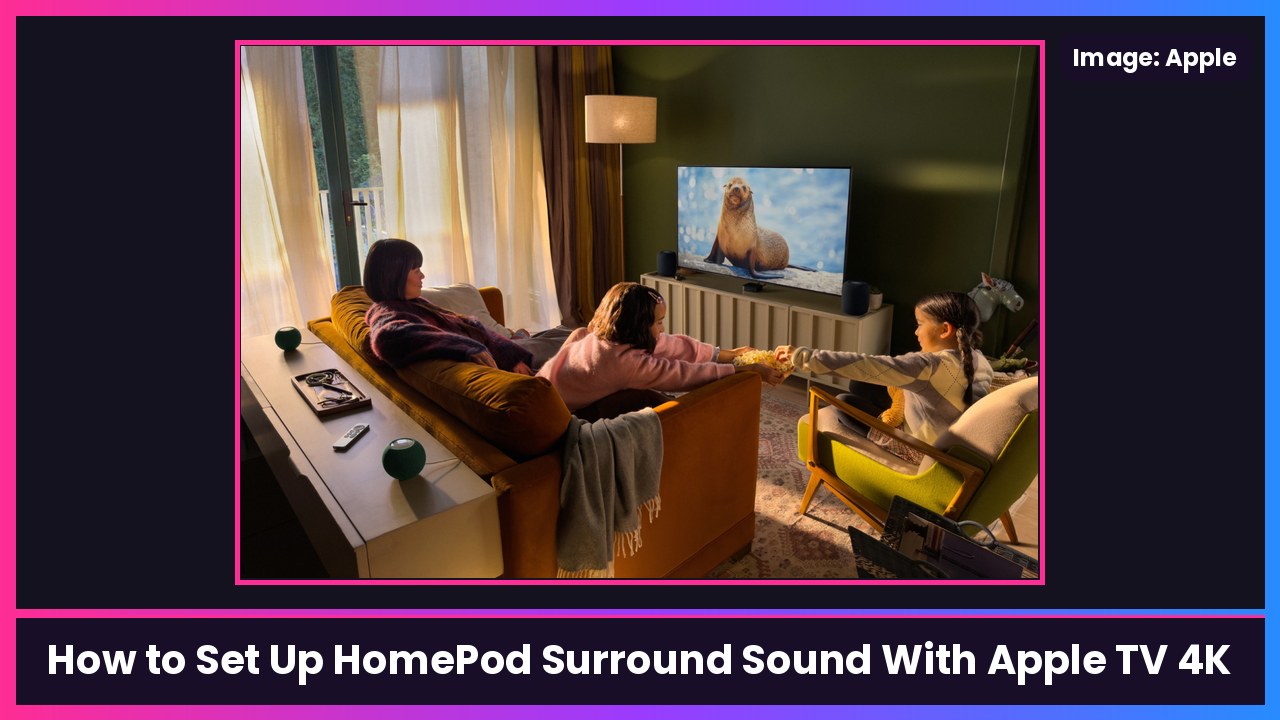
Quick summary: The biggest home theater upgrade in the new Apple TV 4K (4th generation) isn’t the chip, it’s sound. For the first time, Apple TV can use four HomePods as a surround sound system. Engadget just walked through the setup today, and I checked every step against Apple’s own support doc. Here’s how to do it, plus the two-speaker stereo setup that works with older Apple TVs too.
Key takeaways
- Surround needs the Apple TV 4K (4th generation) plus four HomePod (2nd generation) or HomePod mini 2 speakers. You can also mix two HomePod (2nd gen) in front with two HomePod mini 2 in back.
- Stereo (two speakers, or even one) works with any Apple TV 4K and any HomePod or HomePod mini.
- Everything has to be in the same room in the Home app first. That’s the step people skip.
- The Apple TV tunes the speakers to your room with test tones.
- Apple notes that HomePod mini doesn’t support Dolby Atmos 5.1 or 7.1 surround, and other AirPlay speakers aren’t supported for home theater audio.
What you’ll need
| Setup | Apple TV | Speakers |
|---|---|---|
| Home theater surround | Apple TV 4K (4th generation) | 4x HomePod (2nd gen) or 4x HomePod mini 2, or 2x HomePod (2nd gen) + 2x HomePod mini 2 |
| Home theater stereo | Any Apple TV 4K | 1 HomePod or HomePod mini, or a stereo pair of two |
Apple says the speakers and Apple TV all need the latest software, so update everything first. On the Apple TV that’s in Settings; HomePods update through the Home app on your iPhone.
Pricing reality check from Engadget: the new Apple TV 4K is $299, and the HomePod (2nd gen) and HomePod mini 2 are $349 and $149. Four big HomePods plus the box gets you up near $1,700. Heads-up: when I checked this morning, Amazon didn’t have the HomePods in stock from a regular seller, so I’m only linking the Apple TV gear below.
Step 1: Put the Apple TV in the right room
- On your Apple TV, open Settings.
- Select AirPlay and Apple Home.
- Under Apple Home, choose Select a Room (Engadget’s wording; Apple calls this assigning the Apple TV to a room) and pick the room where the TV is.
Step 2: Add your HomePods to the same room
For a brand-new HomePod, plug it in, open the Home app on your iPhone or iPad, tap Add, then Add Accessory, and scan the code or hold your phone near the speaker. Pick the same room as your Apple TV, name it, and finish. Repeat for every speaker.
Already have HomePods set up in another room? In the Home app, touch and hold the HomePod, tap the gear (Accessory Settings) button, tap Room, and choose your TV room.
What you should see: the Apple TV and every HomePod listed under the same room in the Home app.
Step 3: Create the home theater (surround)
Straight from Apple’s steps:
- In the Home app, select one of the HomePods, then tap the gear icon in the bottom corner.
- Scroll down and tap Create Home Theater.
- Tap the HomePods you want in the group, then tap the checkmark in the upper corner.
- You’ll be prompted to finish setting up your home theater on your Apple TV.
Step 4: Place and tune the speakers on the Apple TV
- Turn on your Apple TV.
- Follow the on-screen prompts to position your speakers. Mixing sizes? Apple says the HomePod mini 2 go in the back and the HomePod (2nd gen) go in the front.
- Select Start Tuning. Your TV plays a series of tones to tune the HomePods to your space. Keep the room quiet for this part.
- Select Confirm to confirm where each speaker is, then follow the prompts to pick the color of each speaker, and select Confirm again.
What you should see: the setup finishes on the TV and audio plays from all four speakers. Play something mixed in surround to test it.
Only have two speakers? Set up stereo instead
- Put the Apple TV and HomePod (or HomePod mini) in the same room (Steps 1 and 2).
- Using two? In the Home app, select one HomePod, tap Settings, then Create Stereo Pair and follow the prompts. Make sure the pair is in the Apple TV’s room.
- Turn on the Apple TV. When it asks if you want to use the HomePod speakers as Apple TV speakers, select Use as TV Speakers.
This one works with any Apple TV 4K, not just the new model.
If you don’t see the setup screen
Apple says you can turn on home theater audio manually:
- On Apple TV: Settings > Video and Audio > Audio Output, then select your HomePod or stereo pair.
- On iPhone or iPad: in the Home app, tap your Apple TV, tap the gear icon in the lower right, scroll down to Default Audio Output, and select the HomePod or stereo pair.
Tips
- Room first, group second. If Create Home Theater doesn’t list all your speakers, one of them is probably assigned to another room.
- Atmos fans: Apple notes HomePod mini doesn’t support Dolby Atmos 5.1 or 7.1 surround, so the full-size HomePod (2nd gen) is the pick for the front pair.
- No AirPlay mixing: Apple says other AirPlay-compatible speakers aren’t supported for home theater audio, so a random AirPlay soundbar can’t be part of the group.
Recap checklist
- Apple TV 4K (4th gen) + four HomePod (2nd gen) / HomePod mini 2, all updated
- Apple TV and every speaker in the same room in the Home app
- Home app > HomePod > gear > Create Home Theater > pick speakers > checkmark
- On Apple TV: place speakers, Start Tuning, confirm placement and colors
- No prompt? Settings > Video and Audio > Audio Output
My take
Four HomePods around a couch is the most “Apple” home theater ever, and the room tuning is a genuinely nice touch. But it’s expensive, and if you already have one or two HomePods, the stereo setup gets you most of the way there on any Apple TV 4K. If you’re building out your Apple living room this Black Friday, the Apple TV 4K is the place to start, and HomeView can control the rest.
Related: The new Apple TV 4K is available today: what to know and how to set up the new Apple TV 4K (and fix YouTube).
Sources: Apple Support: Set up home theater audio with HomePod or HomePod mini and Apple TV 4K (published Nov 12, 2026), Engadget: How to set up surround sound with Apple TV 4K and HomePods (Nov 21), Apple Newsroom: Apple unveils the new Apple TV 4K.
Subscribe to GregglesTV for daily tech news, reviews and walkthroughs.
See today’s GregglesTV Best Tech Deals or browse all deals posts.
Comments
Comments are moderated. Hate, slurs, spam and scam posts are blocked. Don’t include personal info you wouldn’t want public. See the privacy policy.
Loading comments…