Galaxy AirDrop: How to Share Files With iPhone, iPad and Mac
The Galaxy S26 can AirDrop. Here's how to turn on Share with Apple devices in Quick Share and send or receive photos and files with a Mac or iPhone.
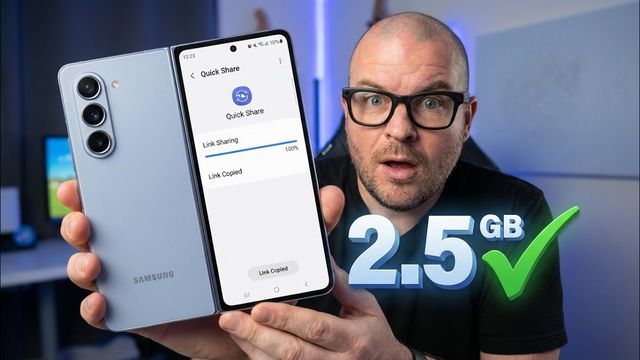
Quick summary: One of the coolest new features on the Galaxy S26 series is AirDrop support. You can send and receive files with iPhones, iPads and Macs through Quick Share. It may come to some older Galaxy phones too, and some newer Pixels have it.
Step 1: Check your Quick Share settings
- Open Settings > Connected devices > Quick Share.
- Tap Phone name and change it if you want. This is the name Apple devices will see in AirDrop.
- Make sure Share with Apple devices is turned on. Tap it to see Samsung’s own instructions.
Heads up: while Share with Apple devices is on, your phone may temporarily disconnect from Wi-Fi.
Step 2: Set AirDrop to Everyone on the Apple device
To send to an Apple device, the recipient’s AirDrop has to be set to Everyone, not Contacts Only. On a Mac, open Finder, click AirDrop in the sidebar, and change Allow me to be discovered by to Everyone. On an iPhone or iPad, the same option is in the AirDrop settings.
Receive from a Mac (or iPhone) on your Galaxy
- On the Mac, select your files (one or several), right click, choose Share > AirDrop.
- On your Galaxy, swipe down and tap the Quick Share tile. It says Ready to receive, and your phone shows up in the AirDrop window.
- Click your phone on the Mac. Tap Accept on the phone, then Open.
You have to open Quick Share from the quick panel to receive. If you don’t, you won’t get any notification that someone’s trying to send you something. If the tile is missing, swipe down, tap the pencil, and add Quick Share from the controls at the bottom.
Where files go: open My Files > Internal storage > Download > Quick Share. They go in the Quick Share folder even though they came by AirDrop.
Send from your Galaxy to a Mac
- In the Gallery (or any app), select your photos or files and tap Share > Quick Share.
- Pick the Mac (mine showed up as “GregglesTV MacBook Pro”).
- On the Mac, choose Save to Downloads (or open in Photos).
It’s one more step than regular Quick Share, but it’s an amazing feature to have with your Apple friends.
My picks
Watch the full video on YouTube, and subscribe to GregglesTV for daily tech news, reviews and walkthroughs.
See today’s GregglesTV Best Tech Deals or browse all deals posts.
Comments
Comments are moderated. Hate, slurs, spam and scam posts are blocked. Don’t include personal info you wouldn’t want public. See the privacy policy.
Loading comments…