Meta Ray-Ban Display Glasses: How to Set Up, Step by Step
How to pair Meta Ray-Ban Display glasses and the Meta Neural Band in the Meta AI app, fit the band correctly, and learn the basic gestures.
Quick summary: Setting up the Meta Ray-Ban Display glasses and the Meta Neural Band is just as easy as setting up other Meta glasses. Here’s the whole process in the Meta AI app, plus how to wear the band and the first gestures to learn.
Pair the glasses
- Download the Meta AI app and sign in.
- Tap the glasses icon at the bottom right, then the plus sign at the top.
- Scroll down and choose Meta Ray-Ban Display and Meta Neural Band.
- Make sure the glasses are charged and nearby, and remove the protective tab if it’s still there.
- Take the glasses out of the case, power them on and fold the arms. Press and hold the capture button for five seconds and release when the LED rapidly pulses white. Tap Done.
- When the app finds them, tap Display, then Pair.
Pair the Neural Band
- Some features won’t work without the band, so tap Continue.
- Press and hold the band’s button for two seconds until the LED turns on and you feel a buzz.
- When the app finds it, tap Pair. It then checks for and installs updates.
Safety settings
The app walks you through wearing them responsibly, including audio-only mode and driving detection, which switches to audio-only when it detects high-speed movement. I left driving detection off for now.
Wear the band correctly
- Choose the hand you’ll use for gestures (I picked my right).
- Unlock the clasp and slide the band on with the line facing you and the compute module on top of your wrist.
- Position it just past your wrist bone, pull it snug so all the sensors make contact, and lock the magnetic clasp.
Display and gesture tutorial
- Adjust text size and height in accessibility. I made the text big and bold.
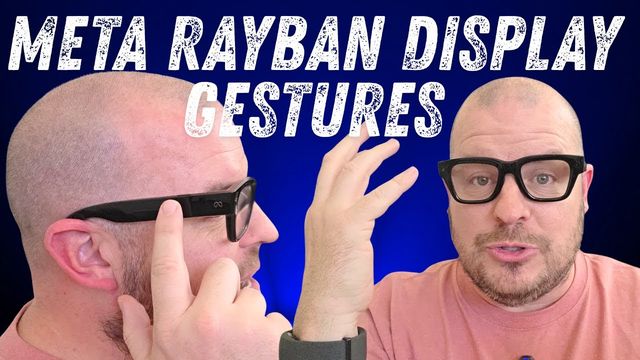
- Double tap your middle finger and thumb to wake or sleep the display.
- Tap your index finger and thumb to select.
- Swipe your thumb along your index finger to scroll.
- Tap your middle finger and thumb once to go back or dismiss a message pop-up.
When you take a photo, you see a live preview with no lag. The display stays up for about 5 to 10 seconds before it hides. It sat slightly off-center for my eyes at first, but it’s very intuitive, and they’re growing on me.
Get them
Watch the full video on YouTube, and subscribe to GregglesTV for daily tech news, reviews and walkthroughs.
See today’s GregglesTV Best Tech Deals or browse all deals posts.

Comments
Comments are moderated. Hate, slurs, spam and scam posts are blocked. Don’t include personal info you wouldn’t want public. See the privacy policy.
Loading comments…