That Viral iPhone 'Live Listen' Warning Is Mostly False: What the Setting Really Does (and How to Turn It Off)
A screenshot of a supposed government memo says iOS 27 secretly turned on Live Listen to record your conversations for Apple ads. Fact-checkers say that's mostly false. Here's what Live Listen and its Remote Control option actually do.
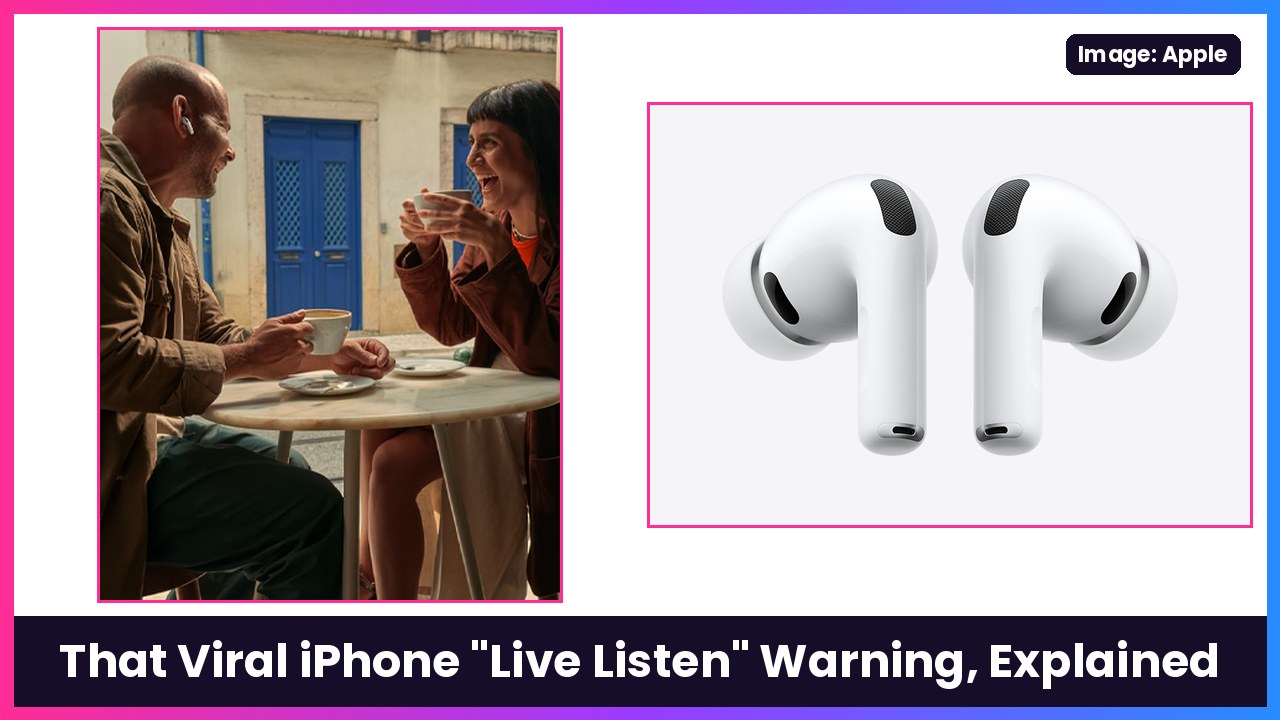
Quick summary: If your feed is full of a scary iPhone warning right now, take a breath. Screenshots of a memo attributed to HSI Chicago are going viral on X, claiming iOS 27 turned on “Live Listen” by default so your iPhone can capture nearby conversations, transcribe them and send them to Apple for ads. Snopes rated the core claim mostly false. Live Listen is an accessibility feature that turns your iPhone into a remote microphone for your AirPods or hearing aids, and its Remote Control option only works with your own devices signed in to the same Apple Account. Here’s what’s real, and how to turn it off anyway if you want peace of mind.
What the viral posts claim
Per the posts summarized on X, the memo says iOS 27 enabled “Live Listening” by default on government iPhones, recording and transcribing nearby conversations and sending the data to Apple for advertising. It tells people to turn off “Remote Control” under Settings > Accessibility > Audio & Visual > Live Listen. I couldn’t verify the memo itself, and Snopes says versions of this rumor have been around since October.
What’s actually true
- Live Listen is real and has been around for years. Apple’s support page says it streams sound from your iPhone’s microphone to MFi hearing devices, AirPods or supported Beats, so you can hear better in noisy places. Snopes notes AirPods and Beats support was added back in iOS 12.
- The “Remote Control” option came with iOS 26, not iOS 27, according to Snopes. It lets your paired Apple Watch or a nearby iPhone or iPad signed in to the same Apple Account start, stop or jump back into a Live Listen session, and see live captions as your iPhone picks up audio. That matches Apple’s own description.
- It’s not “remote access” to your phone. Snopes says the feature doesn’t give anyone access to your phone’s activity. It works only between devices on your Apple Account, and it’s about audio near the iPhone and its captions, not your apps or screen.
- Nothing in Apple’s documentation says it sends your conversations to Apple for ads. Neither Apple’s Live Listen page nor Snopes supports that part of the claim.
- The toggle may have been on by default. This is the part that’s partly true: Snopes says that based on user reports and its own testing, Remote Control did appear to be enabled automatically after the iOS 26 update. Snopes asked Apple about it and was waiting on an answer.
One more nuance: Snopes says the person with the iPhone has to start the session themselves. Apple’s page says a second device on your account can “remotely start, stop, or jump back in on a session.” Either way, it’s limited to devices signed in to your Apple Account, so keep that account locked down with a strong password and two-factor authentication.
How to check it (and turn it off)
Live Listen settings are where the memo says, per Apple’s guide:
- Open Settings.
- Tap Accessibility > Audio & Visual > Live Listen.
- If you see a Remote Control toggle and you don’t use it, turn it off. (Apple’s page doesn’t name the toggle; the “Remote Control” name comes from Snopes and the viral posts, so the label could look a little different on your phone.)
Turning it off doesn’t break Live Listen. You can still start a session yourself from that same menu with Start Live Listen, or from Control Center.
How to actually use Live Listen (it’s pretty great)
- Put on your AirPods Pro 3 or other supported AirPods or Beats and connect them to your iPhone.
- Go to Settings > Accessibility > Audio & Visual > Live Listen and tap Start Live Listen. Or open Control Center and use the hearing control.
- Put your iPhone near the person or sound you want to hear. Sounds get louder in your earbuds.
- In Control Center, tap Live Listen to see Live Captions (iOS 26 or later, not in every language or region), rewind, skip forward, or stop the session.
Apple says Live Listen with AirPods needs iOS 14.3 or later. I’ve got more AirPods hearing features in my AirPods Pro hearing test how-to.
My take
This is a classic case of a real setting plus a scary screenshot. Live Listen is a genuinely helpful hearing feature, and the Remote Control option is meant for things like leaving your phone near a speaker and controlling it from your Apple Watch. If having it on bugs you, it takes ten seconds to turn off. Just don’t let a screenshot convince you your iPhone Duo or iPhone 18 Pro Max is secretly selling your conversations to advertisers. There’s no evidence of that.
Sources: Snopes: Did Apple release ‘Live Listen’ update that lets someone else remotely access your phone?, Apple iPhone User Guide: Use iPhone as a remote microphone with Live Listen, Mimikama fact check (German), trending story on X: Viral HSI Memo Warns of iOS Live Listen Privacy Risk.
Subscribe to GregglesTV for daily tech news, reviews and walkthroughs.
See today’s GregglesTV Best Tech Deals or browse all deals posts.
Comments
Comments are moderated. Hate, slurs, spam and scam posts are blocked. Don’t include personal info you wouldn’t want public. See the privacy policy.
Loading comments…