Galaxy A37 5G: First 20 Things To Do
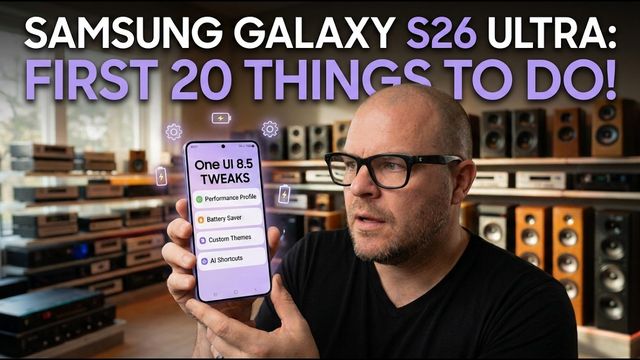
The first 20 settings I change on the Galaxy A37 5G: 4K camera, quick panel, Dolby Atmos, vivid display, battery, face unlock and updates.
Quick summary: Here are the first 20 things I do on a new Samsung Galaxy A37 5G, starting with the camera and ending with updates.
Camera
- Record in UHD (4K): open the camera, switch to Video, tap the resolution at the top and pick UHD. Flip to the selfie camera and set it to UHD too.
- Grid lines and level: in camera Settings, turn on grid lines and the level so shots are centered and straight (great for the rule of thirds).
- Turn off “Save selfies as previewed” so selfies aren’t mirrored and text reads correctly.
- Shooting methods: turn on voice commands (say “shoot” or “record”) and show palm for hands-free photos. Turn off the shutter sound.
Home screen and quick panel
- Wallpaper and themes: press and hold a blank spot on the home screen and tap Wallpaper and style. Pick featured, gallery, graphical or color wallpapers, or tap get more wallpapers for the Galaxy Themes store (themes, wallpapers, icons and Always On Display designs, free and paid).
- Grid size: in Home screen settings, change the home and apps screen grid. I like five columns.
- Swipe down for notification panel: turn this on so you can swipe down anywhere on the home screen.
- Panel settings: swipe down twice, tap the pencil and open Panel settings. I switch from Separate to Together so notifications and quick toggles come down together.
- Edit quick toggles: change the top row, set brightness control to show always, then drag, resize, remove or add toggles (like NFC). Tap Done.
Settings
- Wi-Fi network notifications: go to Connections > Wi-Fi > three dots > Advanced settings and turn it off to stop open-network alerts.
- Sounds: in Sounds and vibration, pick your ringtone and notification sound. Then turn on Dolby Atmos in Sound quality and effects (I leave it on Auto).
- System sounds and vibration feedback: I turn them all off.
- Display: choose light, dark or a sunset-to-sunrise schedule. Keep Motion smoothness on Adaptive. Set Screen mode to Vivid and drag the white balance slider one notch left for that colorful, old-school Samsung look. Adjust font size and screen zoom if you need to.
- Screen timeout: two minutes. Also turn on Keep screen on while viewing.
- Navigation bar: gestures or buttons (you can swap the button order), and raise the back-gesture sensitivity. Turn on touch sensitivity if you use a screen protector.
- Battery protection: off, Basic (stops at 95% and learns when to finish) or Maximum (caps at 80%, which means less screen time). I also use auto dim screen at 5% as a warning.
- Always On Display: in Lock screen and AOD, choose tap to show, always, auto or only for new notifications.
- Face unlock and fingerprints: in Security and privacy > Screen lock and biometrics, add fingerprints and set up face unlock. Turn off Stay on lock screen until swipe and turn off the brighten screen option, which will blind you at night.
- Advanced features: turn on intelligent features, Labs > Multi window for all apps, double press the side button for the camera (or set the side button to the power menu, great for older users), swipe for split screen, full screen in split screen view, motions and gestures (palm swipe screenshot, double tap to turn off screen) and Dual Messenger for two accounts in apps like WhatsApp or Facebook.
- Update everything: check Software update, then update your Samsung apps from the Galaxy Store and the rest in Play Store > Manage apps and devices > Update all.
Get it
Watch the full video on YouTube, and subscribe to GregglesTV for daily tech news, reviews and walkthroughs.
See today’s GregglesTV Best Tech Deals or browse all deals posts.

Comments
Comments are moderated. Hate, slurs, spam and scam posts are blocked. Don’t include personal info you wouldn’t want public. See the privacy policy.
Loading comments…