Galaxy Z Fold 8: First 20 Things to Do
The first 20 settings to change on a new Galaxy Z Fold 8 or 8 Ultra, from camera and quick panel tweaks to display, unlock, Gboard and call settings.
Quick summary: These are the first 20 things I set up on a new Galaxy Z Fold 8. The same settings apply to the Fold 8 Ultra.
Camera
- Video resolution: in video mode, set every camera on both screens to UHD 60 (or UHD 30, which is reliable in low light). I also turn HDR video off, because my clips look washed out when I import them to my computer.
- Auto FPS: in camera settings, set it to use 30 and 60fps videos, so it drops to 30 in low light. I also turn on location tags and the grid lines and level, and turn off “Selfies as previewed” so text isn’t mirrored.
- Shooting methods: turn on voice commands (“cheese,” “capture,” “shoot”) and show palm, and turn off the shutter sound.
- Camera Assistant: download it so you can enable 24MP photo mode. Then switch photo mode from 12MP to 24MP and it sticks. It’s sharper without eating too much storage.
Home screen and quick panel
- Wallpapers and themes: long-press the home screen, then Wallpaper and style. Pick photos, generative AI or graphic wallpapers, or download free or paid themes.
- Quick panel layout: swipe down twice, tap the gear, then Panel settings, and set it to Together so notifications and toggles come down in one swipe.
- Customize toggles: tap the pencil to resize, reorder and add or remove controls.
- Feed and app drawer: choose Google Discover or Samsung News for the left home screen. In the app drawer, tap the three dots, then Sort, then Alphabetical.
Connections and Galaxy AI
- Wi-Fi notifications: in Wi-Fi advanced settings, turn off network notifications about open networks.
- Data warnings: under Data usage, Mobile data usage, then the gear, turn off Set data limit and Set data warning if you have unlimited data.
- Galaxy AI: check Call Screening (voices, speed and language), Live Translate, Call Brief, and the new Now Nudge, which opens related content in a side window for easy multitasking.
Notifications and display
- Notifications: set the pop-up style to Detailed, and show notification icons in the status bar instead of a dot.
- Display: I use dark mode 24/7, or you can schedule it from sunset to sunrise. Keep adaptive brightness on, set Color mode to Vivid and drag the advanced slider all the way. Set screen timeout to 2 minutes and turn on Keep screen on while viewing.
- Navigation and touch: use gestures (or flip the three-button order), keep Circle to Search on, and turn on Accidental touch protection, Increased touch sensitivity (if you use a screen protector) and Show charging information.
- Always On Display: I usually keep it off to save battery, but you can show your wallpaper or the Now Bar, always or on a schedule.
Security and safety
- Face and fingerprint: turn off Stay on lock screen until swipe and Brighten screen for face unlock. Set fingerprint unlock to be always on for the cover and main screens.
- Emergency alerts: add medical info and emergency contacts. Keep wireless emergency alerts on, but turn off the state and local test alerts. You can also have alerts read aloud.
Multitasking and buttons
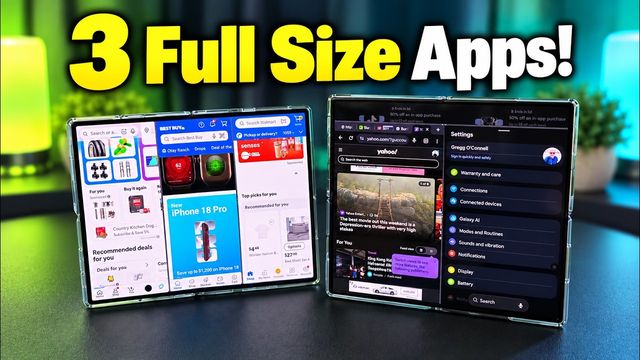
- Advanced features: turn on Multi window for all apps (Instagram needs it) and Swipe for split screen, so a two-finger swipe opens a second app. Or tap the line at the top of an app. Set the side button double-press to open the camera, choose the power menu or digital assistant for long press, and turn on the motions and gestures you want. Then check for a software update.
Keyboard and calls
- Gboard: install it from the Play Store, turn on the number row, turn off typing sounds, and in corrections turn off Block offensive words if you want. Then go to Settings, Keyboard, enable Gboard and make it the default keyboard.
- Phone app settings: turn on Scam detection, which plays a tone and vibrates if AI hears a likely scam call. Also turn on Caller ID and spam protection (carrier models may not have it), Call Screening, Text call quick responses and Direct voicemail, which can send calls to voicemail after a set time.
- Order the Galaxy Z Fold 8 from Samsung
- Benks case for the Galaxy Z Fold 8, code GREGGLESTV
- Benks case for the Galaxy Z Fold 8 Ultra, code GREGGLESTV
- OhSnap grip
Watch the full video on YouTube, and subscribe to GregglesTV for daily tech news, reviews and walkthroughs.
See today’s GregglesTV Best Tech Deals or browse all deals posts.
Comments
Comments are moderated. Hate, slurs, spam and scam posts are blocked. Don’t include personal info you wouldn’t want public. See the privacy policy.
Loading comments…